Arduino Braille Reader with Display
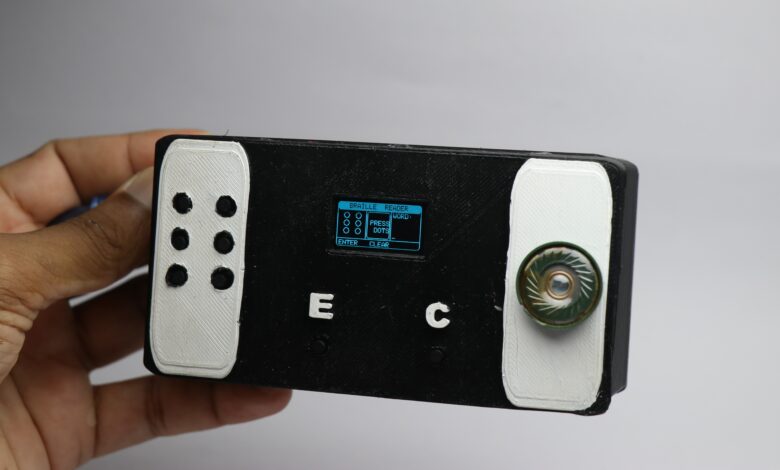
Hi creative people in this article i will show you how to make arduino braille reader with display that converts braille readings to audio.
Braille reader is a device that converts braille fonts(understandable by visually impaired person) to audio that normal person can listen and understand.
The main purpose of making this project is that there are fewer options for a visually impaired person.
Or sometimes termed as blind, to communicate with normal people.
As a hobbyist builder it is our responsibility to help others in some way and i wanted to be a small part of it.
This arduino braille reader has 6 buttons that form the braille fonts with the help of which you can generate texts and form words.
The display and the speaker will help others read and listen to what that specially ables person is willing to communicate.
This tutorial gives detailed build instructions on how to make this project.
Materials required to build an Arduino Braille Reader
- Arduino Uno
- DF Player
- Mini Speaker
- OLED Module
- Push Buttons x 8
- Jumper Cables
- Breadboard
- 3D Printer
- Slicing Software
- Soldering Lead and Iron
- PLA Filament
- Arduino IDE and Programming Cable
Circuit Diagram for Arduino Braille Reader
To begin with let us start with the circuit for this project.
I made the breadboard circuit first followed by using the actual PCB.
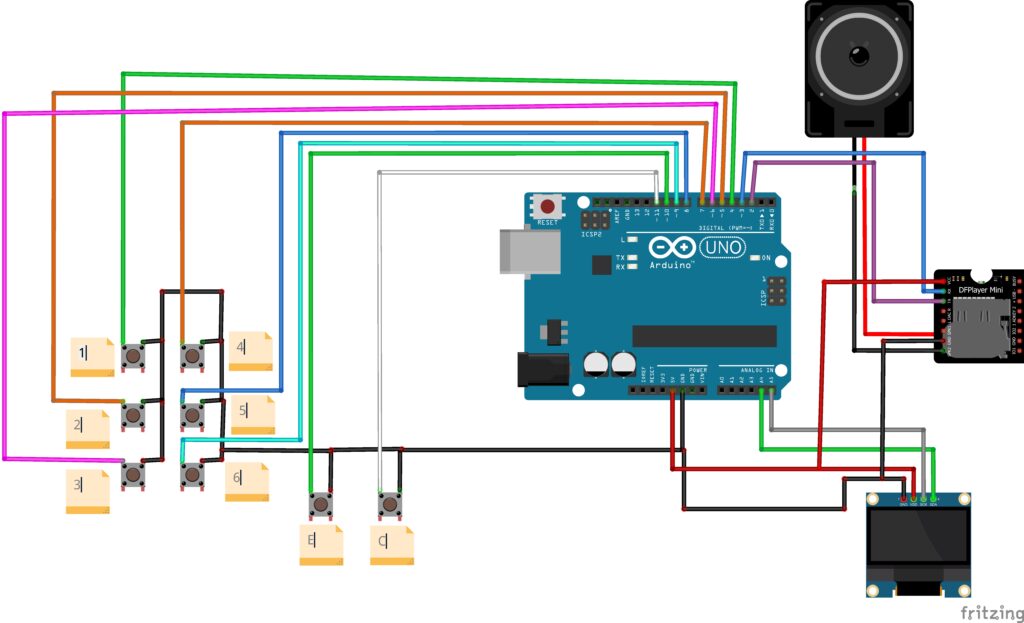
I will be using the small breadboard to connect the buttons, The logic is simple first connect the push button side to gnd.
Now after you connect the power rails to ground the other pin goes to 1,2,3 first line, and then 4,5 and 6 second line as per the braille font these are the connections.
For clearing and entering the word connect the button pins to d11 and d10 pins on the uno board.
OLED module vcc and gnd to 5v and ground pins whereas the scl and sda to a4 and a5 pin of the uno.
DF player Rx and Tx to D3 and D2 pins of uno board, speaker plus and minus to output speaker.
Even here also connect the gnd and vcc to ground and 5v pins of the Uno.
These will complete the wiring connection for this project, to make it easier i have given connection on program also.
Arduino Codes for Braille Reader
This is the arduino program for braille reader, Just open your arduino ide and paste this program.
Make sure you have the libraries installed, if not get it first adafruitgfx library and then unzip it repeat the same for the missing ones.
Here one important thing which you have to notice is you need to keep the audio files in the SD card with names as per the program.
To check how this is done, refer to this VIDEO TUTORIAL.
#include <Wire.h>
#include <Adafruit_GFX.h>
#include <Adafruit_SSD1306.h>
#include <SoftwareSerial.h>
#include <DFRobotDFPlayerMini.h>

#define SCREEN_WIDTH  128
#define SCREEN_HEIGHT  64

Adafruit_SSD1306 display(
  SCREEN_WIDTH,
  SCREEN_HEIGHT,
  &Wire,
  -1
);

SoftwareSerial mp3Serial(2, 3);
DFRobotDFPlayerMini player;
bool playerReady = false;

#define DOT1      4
#define DOT2      5
#define DOT3      6
#define DOT4      7
#define DOT5      8
#define DOT6      9
#define ENTER_BTN 10
#define CLEAR_BTN 11

bool d1,d2,d3,d4,d5,d6;

char currentLetter = 0;

char row0[8];
char row1[8];
char row2[8];
int  row2len = 0;

bool lastEnter = HIGH;
bool lastClear = HIGH;

unsigned long enterMs = 0;
unsigned long clearMs = 0;
#define DEBOUNCE 200

int  pendingTrack = 0;
bool playPending  = false;
unsigned long lastPlayMs = 0;
#define PLAY_GAP 300

bool          flashOn = false;
unsigned long flashMs = 0;
#define FLASH_DUR 350

// ═══════════════════════════════
// TRACK MAP
// ═══════════════════════════════
int getTrack(char c) {
  if(c >= 'A' && c <= 'Z') return c-'A'+1;
  if(c >= '0' && c <= '9') return c-'0'+27;
  return 37;
}

// ═══════════════════════════════
// SAFE PLAY
// ═══════════════════════════════
void safePlay(int track) {
  if(!playerReady) return;
  pendingTrack = track;
  playPending  = true;
}

void handleAudio() {
  if(!playPending) return;
  if(!playerReady) return;
  if(millis()-lastPlayMs < PLAY_GAP) return;
  player.playMp3Folder(pendingTrack);
  lastPlayMs  = millis();
  playPending = false;
}

// ═══════════════════════════════
// WORD HISTORY
// ═══════════════════════════════
void addChar(char c) {
  if(c == 0 || c == '?') return;
  if(row2len < 7) {
    row2[row2len] = c;
    row2len++;
    row2[row2len] = '\0';
  } else {
    memcpy(row0, row1, 8);
    memcpy(row1, row2, 8);
    memset(row2, 0, 8);
    row2[0]  = c;
    row2len  = 1;
    row2[1]  = '\0';
  }
}

void clearAll() {
  memset(row0, 0, 8);
  memset(row1, 0, 8);
  memset(row2, 0, 8);
  row2len       = 0;
  currentLetter = 0;
  flashOn       = false;
}

// ═══════════════════════════════
// SETUP
// ═══════════════════════════════
void setup() {

  Serial.begin(9600);

  pinMode(DOT1,      INPUT_PULLUP);
  pinMode(DOT2,      INPUT_PULLUP);
  pinMode(DOT3,      INPUT_PULLUP);
  pinMode(DOT4,      INPUT_PULLUP);
  pinMode(DOT5,      INPUT_PULLUP);
  pinMode(DOT6,      INPUT_PULLUP);
  pinMode(ENTER_BTN, INPUT_PULLUP);
  pinMode(CLEAR_BTN, INPUT_PULLUP);

  clearAll();

  Wire.begin();
  display.begin(
    SSD1306_SWITCHCAPVCC,
    0x3C
  );
  display.clearDisplay();
  display.display();

  mp3Serial.begin(9600);
  delay(1000);

  if(player.begin(mp3Serial, false, true)) {
    playerReady = true;
    player.volume(25);
    player.EQ(DFPLAYER_EQ_NORMAL);
    delay(500);
    safePlay(39);
  } else {
    playerReady = false;
  }

  bootScreen();
}

// ═══════════════════════════════
// LOOP
// ═══════════════════════════════
void loop() {

  d1 = !digitalRead(DOT1);
  d2 = !digitalRead(DOT2);
  d3 = !digitalRead(DOT3);
  d4 = !digitalRead(DOT4);
  d5 = !digitalRead(DOT5);
  d6 = !digitalRead(DOT6);

  bool enterNow = digitalRead(ENTER_BTN);
  if(lastEnter == HIGH &&
     enterNow  == LOW  &&
     millis()-enterMs > DEBOUNCE) {
    enterMs = millis();
    detectLetter();
  }
  lastEnter = enterNow;

  bool clearNow = digitalRead(CLEAR_BTN);
  if(lastClear == HIGH &&
     clearNow  == LOW  &&
     millis()-clearMs > DEBOUNCE) {
    clearMs = millis();
    clearAll();
    safePlay(38);
  }
  lastClear = clearNow;

  handleAudio();
  drawUI();
}

// ═══════════════════════════════
// BOOT
// ═══════════════════════════════
void bootScreen() {
  display.clearDisplay();
  display.setTextSize(2);
  display.setTextColor(WHITE);
  display.setCursor(10, 14);
  display.print("BRAILLE");
  display.setCursor(22, 36);
  display.print("READER");
  display.display();
  delay(1800);
  display.clearDisplay();
  display.display();
}

// ═══════════════════════════════
// DRAW DOT — your exact code
// ═══════════════════════════════
void drawDot(int x, int y, bool active) {
  if(active) {
    display.fillCircle(x, y, 4, WHITE);
  } else {
    display.drawCircle(x, y, 4, WHITE);
  }
}

// ═══════════════════════════════
// DRAW UI
// ═══════════════════════════════
void drawUI() {

  display.clearDisplay();

  // ── Outer border ──
  display.drawRoundRect(
    0, 0, 128, 64, 4, WHITE);

  // ── Title bar ──
  display.fillRoundRect(
    1, 1, 126, 11, 3, WHITE);
  display.setTextColor(BLACK);
  display.setTextSize(1);
  display.setCursor(18, 2);
  display.print("BRAILLE  READER");
  display.setTextColor(WHITE);

  // ── Dividers ──
  display.drawFastVLine(44, 12, 40, WHITE);
  display.drawFastVLine(82, 12, 40, WHITE);
  display.drawFastHLine(1, 52, 126, WHITE);

  // ════════════════════════
  // COL 1 — LIVE DOTS ONLY
  // No numbers, clean look
  // Left col  x=14 → d1,d2,d3
  // Right col x=32 → d4,d5,d6
  // ════════════════════════
  drawDot(14, 19, d1);
  drawDot(14, 30, d2);
  drawDot(14, 41, d3);

  drawDot(32, 19, d4);
  drawDot(32, 30, d5);
  drawDot(32, 41, d6);

  // ════════════════════════
  // COL 2 — BIG LETTER
  // ════════════════════════
  if(flashOn &&
     millis()-flashMs < FLASH_DUR) {
    display.fillRoundRect(
      46, 13, 35, 38, 3, WHITE);
    display.setTextColor(BLACK);
  } else {
    flashOn = false;
    display.drawRoundRect(
      46, 13, 35, 38, 3, WHITE);
    display.setTextColor(WHITE);
  }

  display.setTextSize(3);
  if(currentLetter != 0) {
    display.setCursor(55, 21);
    display.print(currentLetter);
  } else {
    display.setTextSize(1);
    display.setCursor(51, 25);
    display.print("PRESS");
    display.setCursor(51, 35);
    display.print(" DOTS");
  }

  display.setTextColor(WHITE);

  // ════════════════════════
  // COL 3 — WORD HISTORY
  // ════════════════════════
  display.setTextSize(1);
  display.setTextColor(WHITE);

  display.setCursor(85, 13);
  display.print("WORD:");

  // Row 0 — oldest
  if(strlen(row0) > 0) {
    display.setCursor(85, 24);
    display.print(row0);
  }

  // Row 1 — middle
  if(strlen(row1) > 0) {
    display.setCursor(85, 33);
    display.print(row1);
  }

  // Row 2 — current
  display.setCursor(85, 42);
  if(row2len > 0) {
    display.print(row2);
  } else {
    display.print("_");
  }

  // ════════════════════════
  // BOTTOM BAR
  // ════════════════════════
  display.setTextSize(1);
  display.setTextColor(WHITE);
  display.setCursor(4, 55);
  display.print("ENTER");
  display.setCursor(52, 55);
  display.print("CLEAR");

  display.display();
}

// ═══════════════════════════════
// DETECT LETTER
// ═══════════════════════════════
void detectLetter() {

  if(!d1&&!d2&&!d3&&!d4&&!d5&&!d6) return;

  char found = 0;

  if     (d1&&!d2&&!d3&&!d4&&!d5&&!d6) found='A';
  else if(d1&&d2&&!d3&&!d4&&!d5&&!d6)  found='B';
  else if(d1&&!d2&&!d3&&d4&&!d5&&!d6)  found='C';
  else if(d1&&!d2&&!d3&&d4&&d5&&!d6)   found='D';
  else if(d1&&!d2&&!d3&&!d4&&d5&&!d6)  found='E';
  else if(d1&&d2&&!d3&&d4&&!d5&&!d6)   found='F';
  else if(d1&&d2&&!d3&&d4&&d5&&!d6)    found='G';
  else if(d1&&d2&&!d3&&!d4&&d5&&!d6)   found='H';
  else if(!d1&&d2&&!d3&&d4&&!d5&&!d6)  found='I';
  else if(!d1&&d2&&!d3&&d4&&d5&&!d6)   found='J';
  else if(d1&&!d2&&d3&&!d4&&!d5&&!d6)  found='K';
  else if(d1&&d2&&d3&&!d4&&!d5&&!d6)   found='L';
  else if(d1&&!d2&&d3&&d4&&!d5&&!d6)   found='M';
  else if(d1&&!d2&&d3&&d4&&d5&&!d6)    found='N';
  else if(d1&&!d2&&d3&&!d4&&d5&&!d6)   found='O';
  else if(d1&&d2&&d3&&d4&&!d5&&!d6)    found='P';
  else if(d1&&d2&&d3&&d4&&d5&&!d6)     found='Q';
  else if(d1&&d2&&d3&&!d4&&d5&&!d6)    found='R';
  else if(!d1&&d2&&d3&&d4&&!d5&&!d6)   found='S';
  else if(!d1&&d2&&d3&&d4&&d5&&!d6)    found='T';
  else if(d1&&!d2&&d3&&!d4&&!d5&&d6)   found='U';
  else if(d1&&d2&&d3&&!d4&&!d5&&d6)    found='V';
  else if(!d1&&d2&&!d3&&d4&&d5&&d6)    found='W';
  else if(d1&&!d2&&d3&&d4&&!d5&&d6)    found='X';
  else if(d1&&!d2&&d3&&d4&&d5&&d6)     found='Y';
  else if(d1&&!d2&&d3&&!d4&&d5&&d6)    found='Z';
  else if(!d1&&!d2&&d3&&d4&&d5&&d6)    found='0';
  else if(d1&&!d2&&!d3&&!d4&&!d5&&d6)  found='1';
  else if(d1&&d2&&!d3&&!d4&&!d5&&d6)   found='2';
  else if(d1&&!d2&&!d3&&d4&&!d5&&d6)   found='3';
  else if(d1&&!d2&&!d3&&d4&&d5&&d6)    found='4';
  else if(d1&&!d2&&!d3&&!d4&&d5&&d6)   found='5';
  else if(d1&&d2&&!d3&&d4&&!d5&&d6)    found='6';
  else if(d1&&d2&&!d3&&d4&&d5&&d6)     found='7';
  else if(d1&&d2&&!d3&&!d4&&d5&&d6)    found='8';
  else if(!d1&&d2&&!d3&&d4&&!d5&&d6)   found='9';

  if(found != 0) {
    currentLetter = found;
    addChar(found);
    flashOn = true;
    flashMs = millis();
    safePlay(getTrack(found));
    Serial.print("Letter: ");
    Serial.println(found);
  } else {
    currentLetter = '?';
    flashOn = true;
    flashMs = millis();
    safePlay(37);
    Serial.println("Unknown");
  }
}
Compile the program and then after selecting the proper port and type of board click on the upload button.
After you have upload the code inside your uno if everything is fine you should see a panel on the OLED module.
It should show you the Braille pattern reading and to verify if everything works click on the buttons and you should see the same on OLED module.
Check for Braille font and test the words and their voice.
Now since the electronics are working as expected we can move ahead with casing or the closure for this and i will be designing the frame to hold all these electronics.
3D Printed Design and 3D Printing
I made the design for this project using Tinkercad and you don’t have to worry about designing on your own. You can use my stl to print the model.
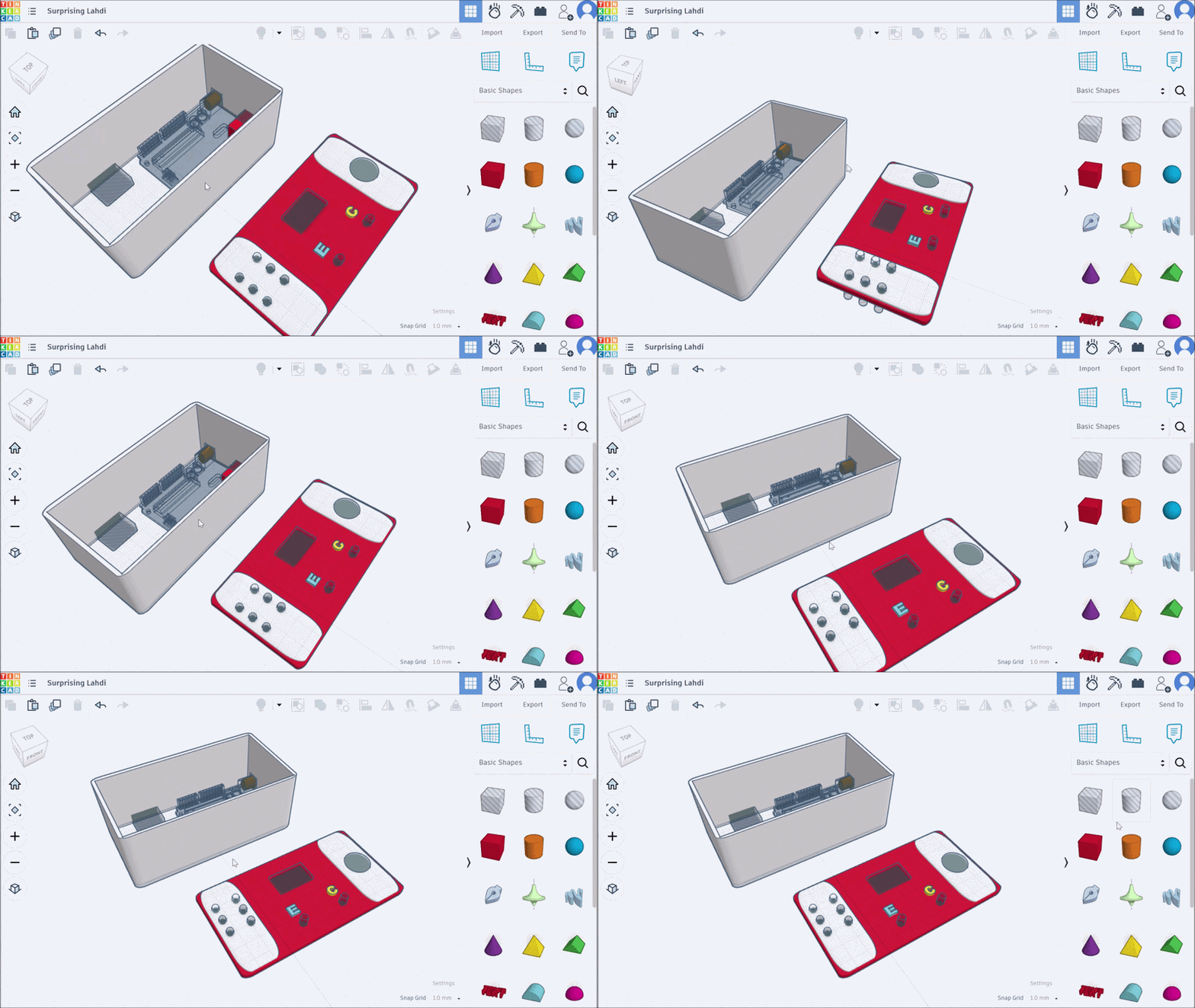
There are 2 parts that you will be printing for this project.
I will use cura slicer to slice the model and there is no need to add any rafts or supports at the time of printing.
The choice of PLA filament color is upto your choice and i recommend to print one part after the other.
Maintain a 30 to 40% infill rate and there is no need to use any rafts or supports at the time of printing.
For the enclosure, You can decide to go with JUSTWAY3D Print service — and honestly, it will be one of the easier way to get enclosure for this project.
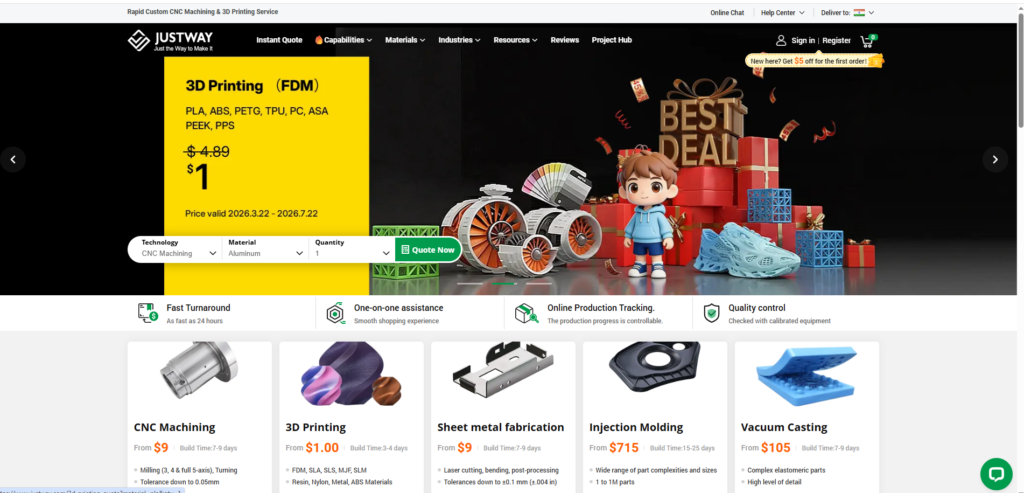
Getting a case to actually feel finished is harder than it sounds. If you want clean edges, the right material strength, so that your electronics sit exactly where they should.
To Order your 3D printing project, visit JUSTWAY’s website and click the “Quote Now” button.
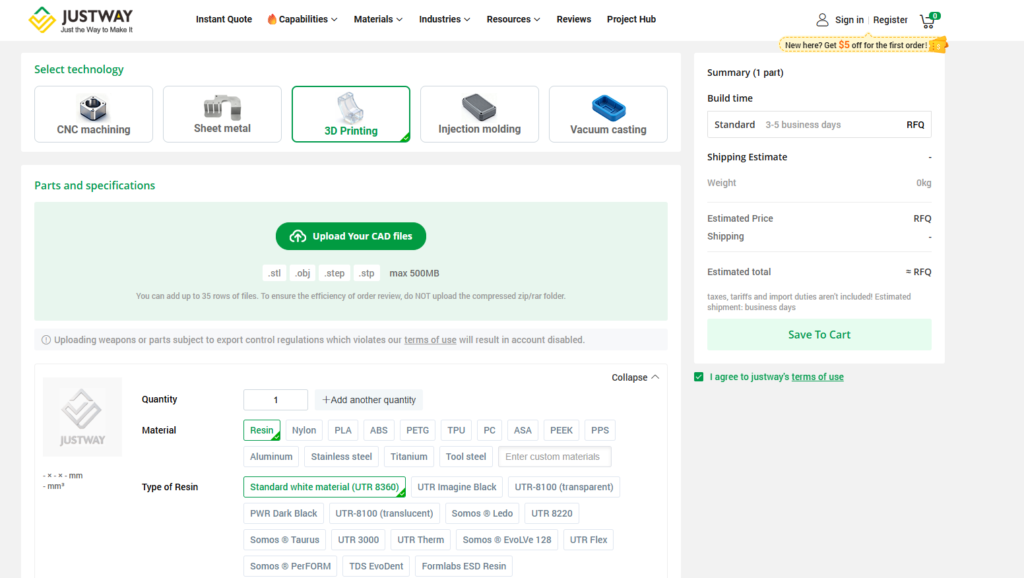
Then Upload your file and select material + finish options, Pick layer resolution and infill rate, then can review the design and place order
Why use 3d printing
Accurate & Dependable Printing – Every print is produced with attention to detail, making it ideal for functional prototypes, electronics enclosures, and custom parts.
Wide Material Selection – Choose from PLA, ABS, PETG, TPU, and other specialty filaments to match your project’s strength, flexibility, or visual requirements.
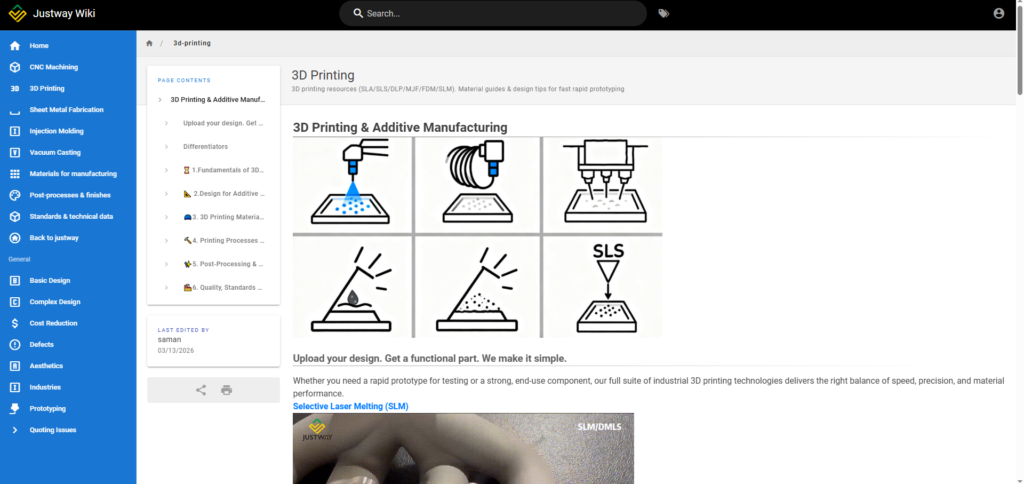
Simple & Transparent Process – Clear pricing, quick turnaround times, and regular updates ensure a smooth experience from start to finish.
Design Assistance – Need help preparing your model? it can suggest small design improvements to make your 3D prints stronger, cleaner, and easier to manufacture.
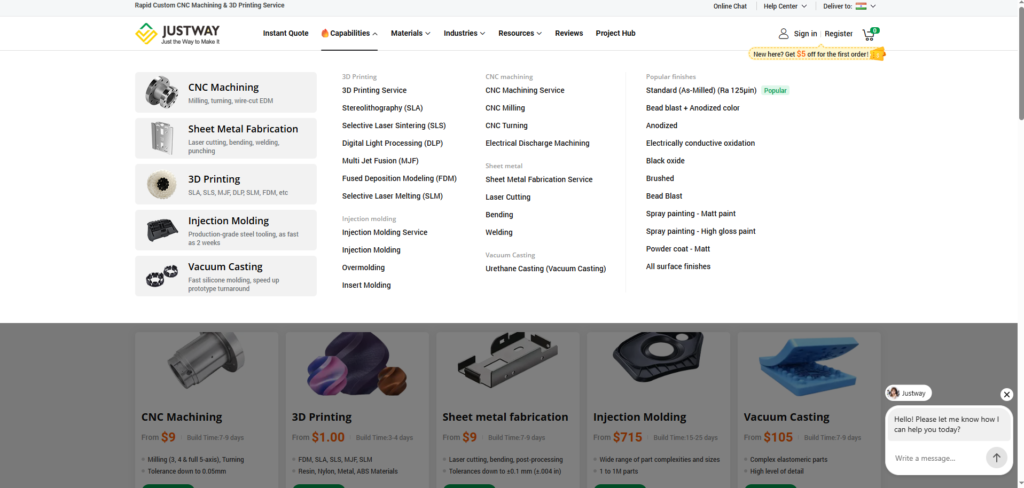
Check their all capabilities above and choose the service that you wish.
Final Assembly Steps
There are only 2 parts that we will be using in this project and there is no need of any post-processing after we have 3d printed part.
After the parts are ready, follow the instructions below to assemble the electronics inside this 3d printed case.
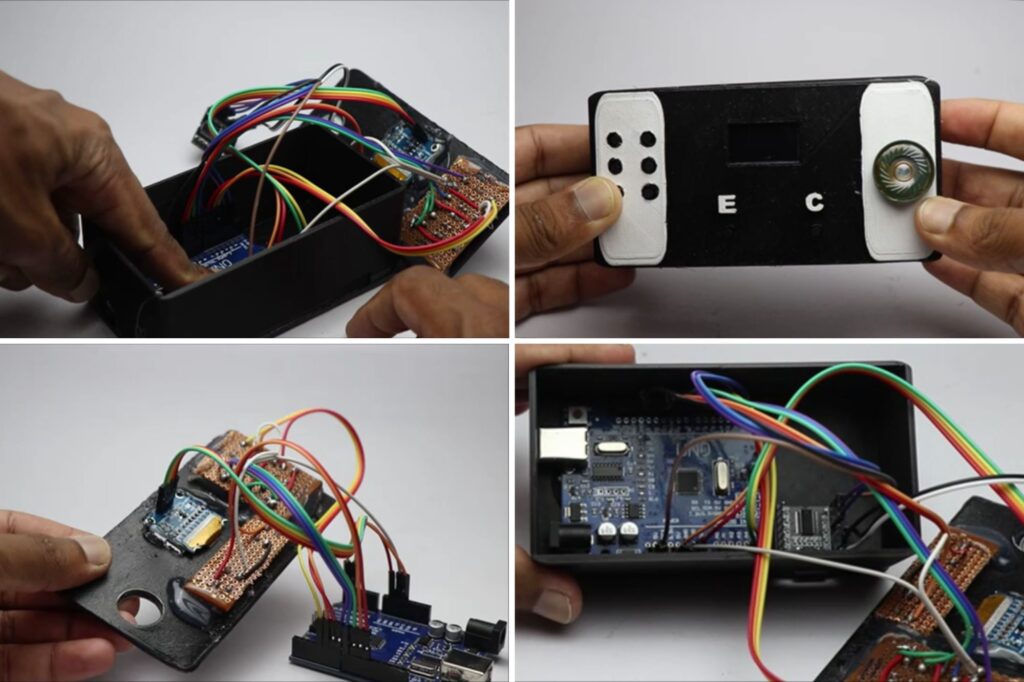
I will start by gluing the oled module, buttons and the speaker on the lid part first.
To shrink the circuit i will be using the zero PCB and you can do the same too the circuit will remain the same.
After this is complete you can attach the uno board to the base, use double side adhesive or the hot glue to couple these things together.
Now with small amount of super glue connect the df player module to the base of 3d printed part.
How to use this Arduino Braille Reader
Using this might be very easy for a visually impaired person since they got special senses activated.
Anyways if they know how to use the controls once they will easily operate this.
Connect this to a USB power source and then you are good to go.
You will see a message on OLED module followed by the UI.
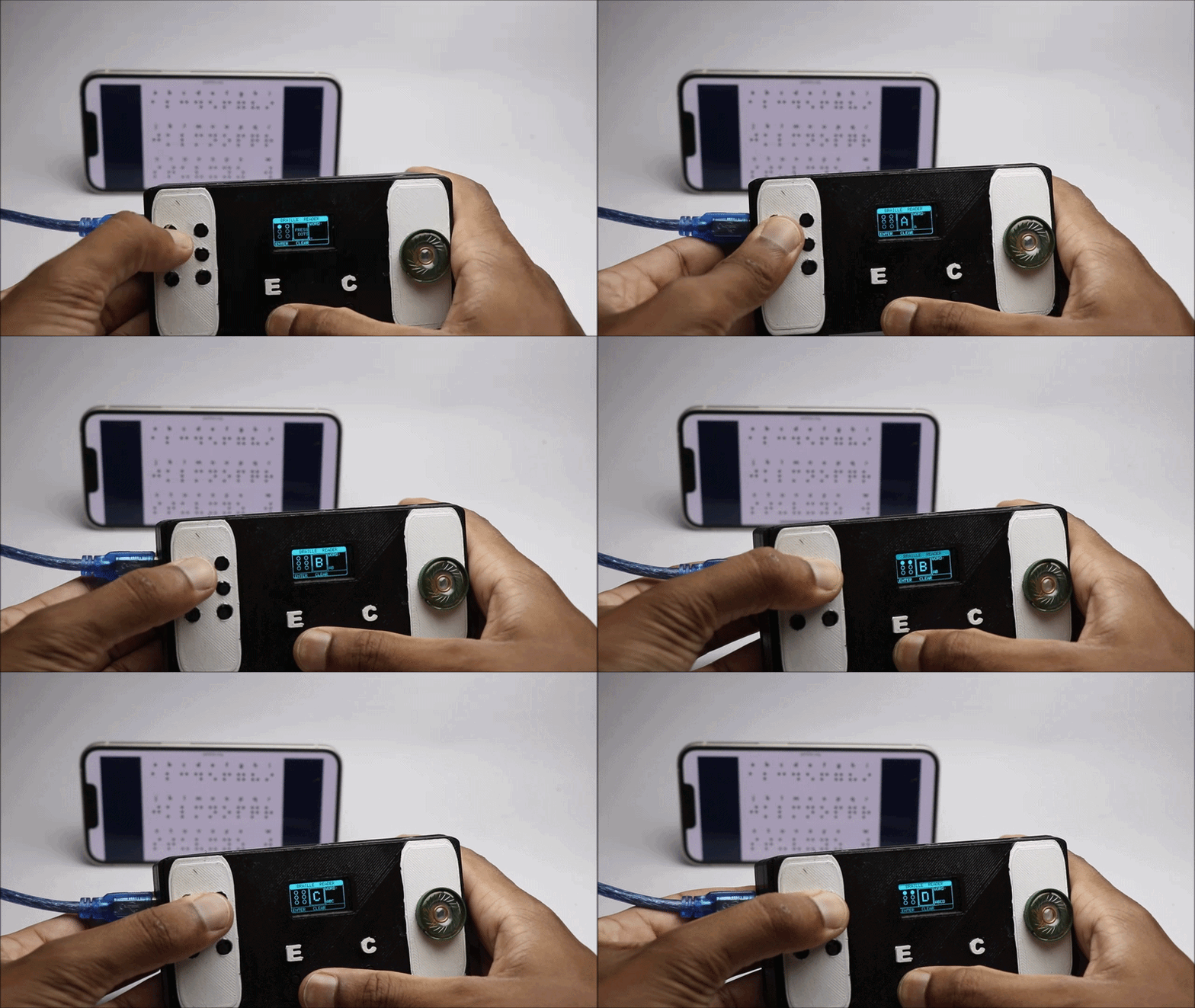
Press the button on the braille dot pattern and the ui dot on the screen should also activate.
I have open braille font on the background and according to that i pressed the button and it gave out the exact word every time.
letter on letter typed will be shown on the side in OLED so that the word formation can be seen.
The letter will be read loud by the speaker, This way the communcation can happen between us and them.
Hope this project was helpful in many ways to the readers.
If you think someone might benefit from this consider sharing it with them also.
You may also like my previous post on arduino smart garage door project